Which situation matches yours?
UK reader who has not verified the firm
Stop and verify Vantage Global Prime LLP through the FCA’s genuine-firm details and the .co.uk site. Do not use international .com links to establish a UK account relationship.
South African reader unsure who the counterparty is
Check your signed agreement and the South African regulations information. Distinguish the FSP 51268 intermediary from the product supplier before troubleshooting a service issue or making a complaint.
You have the MT5 account number, trading password and exact server
Use the applicable device path, select or enter that exact server, and verify the logged-in account and updating market data or status without placing any trade.
The server is not found
On desktop use File > Open an Account, then Scan or manual entry exactly as shown in your credentials email. Re-check that you are using MT5 rather than MT4 and do not substitute a similar server.
You see “no connection” or repeated login failure
Re-check all three login fields, then your internet connection and server availability. If it persists, contact official support with the exact error text and technical details, never your password.
You only need to view or share the account
Use an investor, read-only password where available. It permits viewing of ongoing trades and history without trading permission; do not share the main trading password.
Before you start: which country, contract and platform apply?
Choose the United Kingdom or South Africa journey before using any login or support instructions. The entity in your reader agreement, the applicable documents and the complaints route are different, so do not transfer one country’s protections or terms to the other. For a UK account, start with the FCA’s genuine-firm details for Vantage Global Prime LLP, FRN 590299, and www.vantagemarkets.co.uk, then check the entity and document version in your own agreement. The FCA has separately warned about the international vantagemarkets.com domain; an international app, website or support link does not establish a UK account relationship.
For South Africa, the local regulations information describes Vantage Markets (Pty) Ltd, FSP 51268, exclusively as an intermediary and identifies VIG Group of Mauritius, FSC licence GB20026165, as the product supplier with which the account is registered. Your signed agreement identifies the account counterparty. You can search the FSCA register for 51268 to check the intermediary’s exact legal name and authorisation, but that search does not replace checking the agreement. Finally, confirm that your credentials say MT5: MT4 and MT5 account numbers and servers are not interchangeable. Use official app or store listings and contact details tied to your country service rather than relying on a similar name or domain.
Where do you find the exact login fields?
You need three separate fields: your trading account number, your main trading password and the exact MT5 server name or address. Check the credentials email sent after the account was set up. The APAC international help service also says its Client Portal’s Accounts section shows the account number, server and account type; treat that portal path as specific to that service, not as a confirmed UK or South African menu. For a UK account, use the credentials and documents associated with your UK agreement.
Do not guess a server or try MT4 credentials in MT5. If you are unsure which country service issued the account, resolve that before entering details elsewhere. Keep the main password private: never send a password, PIN or identity document through this site or to someone offering to “help you log in”. An investor password is different from the trading password and provides read-only access.
- For an existing South African account, use the regional MetaTrader 5 page to find platform help. The public page cannot tell you your personal server. Copy that name from the confirmation for this particular MT5 account before trying the connection again.
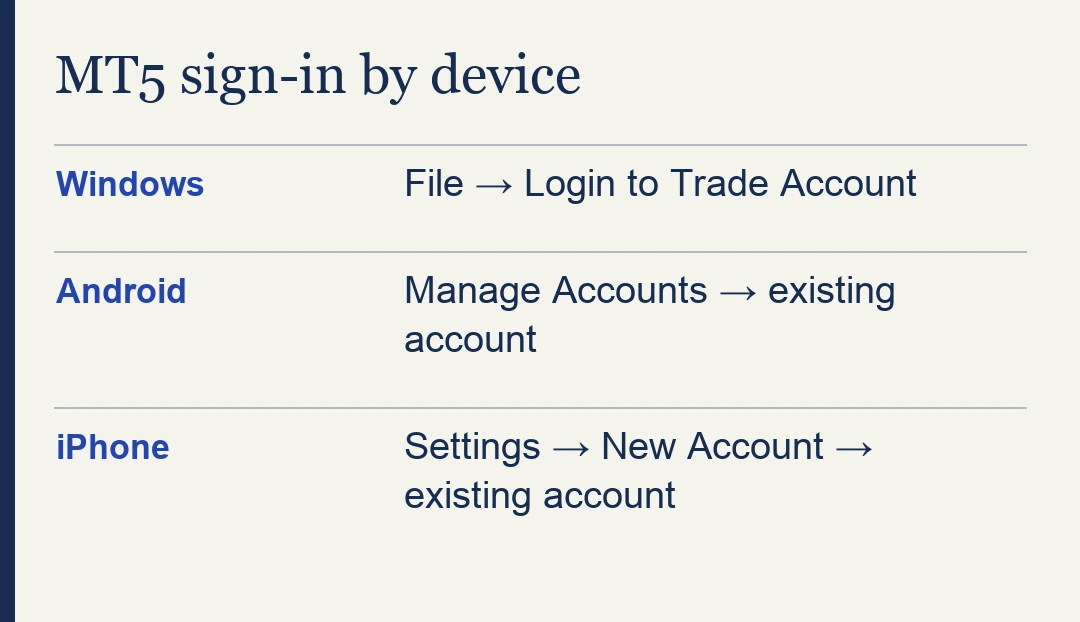
MT5 sign-in by device
UK Help Centre: accessing an existing MT4 or MT5 trading account on desktopHow do you log in on your device?
The desktop path below is published by the UK Help Centre. The Android and iPhone paths come from APAC international help only, so their wording may differ by app version and must not be treated as confirmed South African or UK mobile menus. If those mobile steps do not match your screen, use the credentials and server in your own account documents and the official support route for your service rather than inventing a different path.
- Windows or Mac desktop, UK Help Centre path: open MT5 and select File in the top-left corner.
- Select Login to Trade Account, enter the trading account number and trading password, choose the correct server from the dropdown, then select Login.
- Android, APAC international help only: tap the three-dot icon in the top-left corner, select Manage Account, then choose Login to an existing account.
- On Android, search for and select your server, then enter the trading account number and password.
- iPhone or iPad, APAC international help only: tap Settings in the bottom-right corner, select New Account, then choose Login to an existing account.
- On iPhone or iPad, search for and select your server, then enter the trading account number and password.
What if your server is not listed?
On desktop, the UK Help Centre gives this route: open MT5, select File, then Open an Account. If the server is absent, select Scan to search for available servers or enter the server name manually exactly as it appears in your login credentials email. Do not select a similarly named server: it can produce an error that looks like a password failure and may connect you to the wrong environment.
If scanning or manual entry does not find it, return to the credentials email or the account-details area available for your service. Confirm again that the account is MT5, that the server text is complete and that you are following the correct country journey. Do not keep trying random servers.
- Open MT5 on desktop and select File > Open an Account.
- Select Scan, or manually enter the exact server name from your credentials email.
- If it remains unavailable, re-check the platform, account type, server spelling and country service before contacting official support.
How can you verify the connection without trading?
Check that MT5 shows the intended account number and exact server as logged in, and that market data or the terminal’s connection status is updating without a “no connection” message. Only then review balances, open positions or history, making sure you are looking at the intended account. These checks are sufficient; never place a live trade, deposit funds or change leverage or other settings merely to test the connection.
If you only need to inspect the account, an investor password can provide read-only access where available. It allows viewing of ongoing trades and trading history without permission to execute trades. That also means read-only access is not a suitable way to test dealing functionality, and no live dealing test is necessary for this guide.
How do read-only access and password hygiene work?
An investor password is intended for viewing account activity, including open trades and history, without granting trading permission. It can be useful when sharing performance for analysis or demonstration. Do not share your main trading password for that purpose, and do not assume that a person with read-only access is authorised to operate the account.
The desktop route is from the UK Help Centre. The mobile routes are APAC international help only and may not match every app version or country service.
- Desktop, UK Help Centre path: select Tools > Options, open the Server tab and select Change.
- Tick Change investor (read-only) password and set the new password.
- iOS, APAC international help only: go to Settings, tap the account tab at the top, tap “…” or “>”, select Change Password, then Change Investor Password.
- Android, APAC international help only: tap “≡” in the upper-left corner, go to Manage Accounts, select Change Password, then Change Investor Password.
How should you troubleshoot “no connection” or repeated login errors?
The UK and APAC help articles say “no connection” is often associated with incorrect login details. Re-check the account number, password and server address against the original credentials, including whether you used the trading password rather than the investor password. If all three are correct, check your internet connection and whether the server is online before changing other settings.
If it still fails, contact the official support route for your country service. Provide the account number, server name, MT5 as the platform, your device and operating system, and the exact error text, but never your password. For a UK account, use the genuine .co.uk contact details and retain complaint references and responses; the UK site lists complaints@vantagemarkets.co.uk for complaints. For South Africa, the published contact table lists support-za@vantagemarkets.com for licence enquiries and support@vantagemarkets.com for complaints; state the client entity and reference so the issue remains aligned with the correct counterparty.
- Compare the account number, password and server with your credentials, and confirm you are using MT5.
- Check whether you entered the investor password instead of the main trading password.
- Check the internet connection and server availability.
- If the error persists, record the exact message and contact the official support route for your country service without disclosing your password.
What should you do if something goes wrong after connecting?
Record dates and times, screenshots of errors, the server used, the account number and what you were trying to do. Keep support responses and any complaint reference. In the UK, raise the issue with the UK business first and retain its response for any escalation. The Financial Ombudsman Service explains which UK investment complaints it can consider; check its current eligibility rules and deadlines for your dispute, and do not assume that a clone or offshore firm is eligible.
In South Africa, identify whether the dispute concerns the local intermediary’s service or the product supplier and account counterparty. The FAIS Ombud route concerns complaints within its jurisdiction about advice or intermediary services after the provider has been approached; check its required documents and time limits. Do not automatically send an issuer or execution dispute to that Ombud.
Sources
- APAC international help: accessing an existing MT4 or MT5 trading account on desktop, Android and iOSapac.vantagehelpcenter.com
- APAC international help: finding MT4 or MT5 login details after registrationapac.vantagehelpcenter.com
- APAC international help: why MT4 or MT5 displays “no connection”apac.vantagehelpcenter.com
- APAC international help: the investor read-only password and how to change itapac.vantagehelpcenter.com
- UK Help Centre: accessing an existing MT4 or MT5 trading account on desktophelpcenter.vantagemarkets.co.uk
- UK Help Centre: adding a server that is missing from the MT4 or MT5 login listhelpcenter.vantagemarkets.co.uk
- UK Help Centre: why MT4 or MT5 displays “no connection”helpcenter.vantagemarkets.co.uk
- UK Help Centre: the investor read-only password and the desktop change-password routehelpcenter.vantagemarkets.co.uk
- UK FCA warning concerning the international vantagemarkets.com domain and its distinction from Vantage Global Prime LLPwww.fca.org.uk
- UK FCA clone warning identifying the genuine Vantage Global Prime LLP firm reference and .co.uk domainwww.fca.org.uk
- UK legal-document index for agreements and documents applicable to UK accountswww.vantagemarkets.co.uk
- UK Vantage contact details and complaints email addresswww.vantagemarkets.co.uk
- Financial Ombudsman Service guidance on UK investment complaintswww.financial-ombudsman.org.uk
- South African regulations information distinguishing the local intermediary from the product supplier and account counterpartywww.vantagemarkets.com
- FSCA financial services provider search for checking FSP 51268www.fsca.co.za
- South African Vantage contact details for licence enquiries and complaintswww.vantagemarkets.com
- FAIS Ombud complaint submission route and supporting requirementsfais.powerappsportals.com
- South African site • MetaTrader 5 platforms and resourceswww.vantagemarkets.com