Which situation matches yours?
My agreement names the genuine UK firm
Verify the .co.uk site and FRN 590299 against FCA details. Use the UK MT4/MT5 desktop instructions for a trading statement or the UK portal’s Funds and Transaction History for funding, then query the item with the UK business and retain its response.
My account is presented as South African
Check FSP 51268 in the FSCA search and read the agreement to distinguish the local intermediary from the product supplier. Ask the verified South African support route for the applicable statement and transaction record; do not apply UK instructions, protections or complaint routes automatically.
The website, contact details or entity do not match
Stop before sending documents or money. For a UK check, compare the details with the FCA warning and genuine-firm record; for South Africa, use the FSCA search and your agreement. Preserve existing statements, emails and payment evidence.
The charge is missing from my first report
Check the account number, order or transaction reference, selected period and timezone, then widen the custom period. Compare the trading statement, portal funding history and external payment record before requesting an account-specific breakdown.
The charge remains unexplained
Submit the reference, dates, amount, currency and redacted statement through the verified complaint channel for the contracting service. Keep the originals and response, and assess any Ombud or Ombudsman eligibility and deadline separately.
Choose the United Kingdom or South Africa before opening a statement
For a UK account, check that your documents name Vantage Global Prime LLP and verify the firm against the FCA’s details: FRN 590299 and www.vantagemarkets.co.uk. The FCA has separately warned about the exact international domain vantagemarkets.com and distinguished it from that genuine firm. An international login, app or payment link therefore does not establish a UK relationship. Save the agreement and dated legal documents applicable to your account; they govern the entity, charges, execution terms, protections and complaint route, rather than a generic help article.
For a South African account, the local site describes Vantage Markets (Pty) Ltd, FSP 51268, exclusively as an intermediary. It identifies VIG Group of Mauritius, FSC licence GB20026165, as the product supplier with which the account is registered. Read your own agreement to confirm the counterparty and whether your question concerns intermediary service, product issuance or execution. You can enter 51268 in the FSCA FSP search to check the intermediary’s exact legal name and authorisation scope, but that search does not replace the agreement or make the intermediary the CFD issuer.
- Select United Kingdom or South Africa according to your agreement and residence circumstances.
- Record the contracting entity, account number and the website or regulator entry you verified.
- Do not transfer UK fees, protections, deadlines or complaint routes to South Africa, or vice versa. Readers elsewhere need independently verified sources for their own jurisdiction.
Generate a UK trading-account statement or find an emailed one
The UK help centre documents statement generation in the MT4 or MT5 desktop terminal. It says the downloaded report is saved as an HTML file. Its email guidance is that daily statements are sent only on days when the MT4 or MT5 account has trading activity, while a monthly statement is emailed on the first day of each new month regardless of activity.
If an expected email is absent, check the registered mailbox and spam folder and confirm that you are inspecting the correct trading account. Do not expect an activity-day daily email for a day with no trading activity. The cited UK article does not establish an equivalent generation route for every mobile device; without desktop access, ask verified UK support which statement format is available for your account instead of assuming an international menu applies.
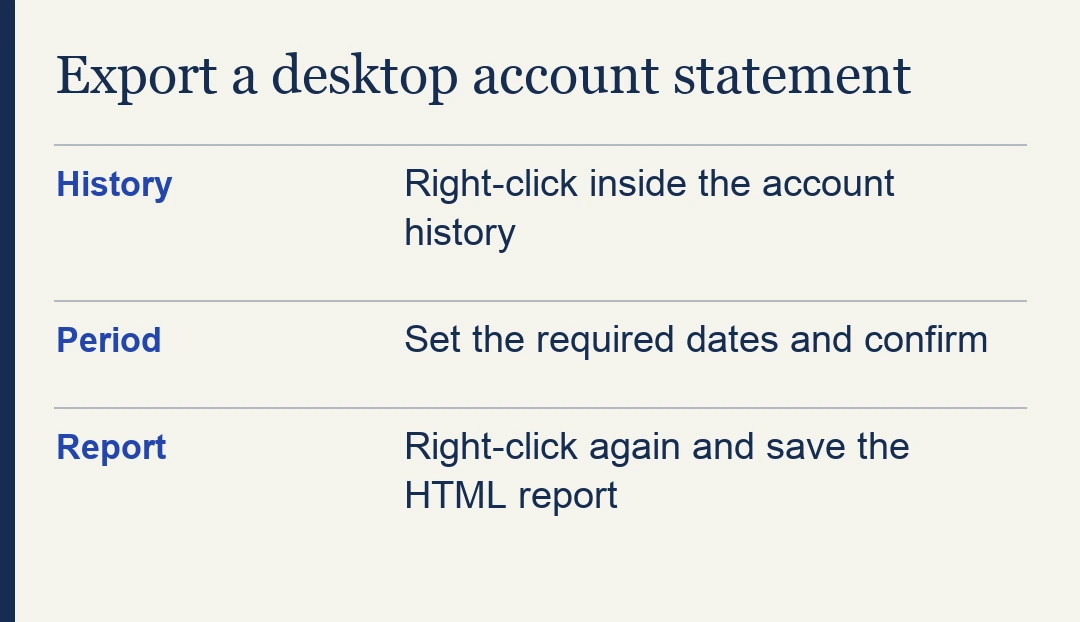
- Open Account History in the MT4 or MT5 desktop terminal.
- Right-click within that window and choose Custom Period.
- Enter the period that should contain the charge and select OK.
- Right-click again and download the report; retain the original HTML file.
- For an emailed statement, preserve the email and attachment, including its received date, so later copies can be compared.
Export a desktop account statement
Generating MT4/MT5 trading account statements (UK Help Centre)Find a UK deposit, withdrawal or internal transfer
For the UK service, the help centre directs users to the client portal’s Funds section and then Transaction History. It describes that record as showing deposits, withdrawals and internal transfers. Keep it separate from the MT4/MT5 trading statement: a bank or card payment may belong in the portal history, whereas a commission, swap or other trading-related entry may need to be traced in the trading report.
If the portal and your bank, card or payment provider show different dates, write down both dates, each reference, the amount and the displayed status. A pending or processing entry should not be treated as a duplicate or completed payment merely because the amounts match.
- Log in to the UK client portal through the verified UK route.
- Open Funds, then Transaction History.
- Locate the payment by amount, currency, reference, status and date.
- Save the record and compare it with the external payment receipt and, where relevant, the trading statement’s balance totals.
Locate and reconcile the exact line item
Record the trading or funding account number, order or transaction reference, amount and currency, and the date and time. Note the timezone used by the statement or portal. For example, a trade closed shortly after midnight in the platform’s timezone could sit on a different calendar date from your local bank record. Confirm that the custom period includes both the event and any relevant closing or settlement entry; widen the period if it falls near a boundary.
For a trade, compare the order’s opening and closing entries and any commission, swap and profit-or-loss fields actually shown. For funding, match the portal reference and status to the external payment record. Then reconcile the line with available totals such as opening balance, closing balance, deposits, withdrawals and trading results. An illustrative check might be an opening balance of £1,000, a £200 deposit and a £15 trading loss producing a £1,185 closing balance; if your unexplained line is £5, the remaining £1,180 would show that the item still needs an account-specific explanation. These numbers are only an arithmetic example, not a Vantage fee or rate. Do not invent a fee category or conclude that a line is erroneous before obtaining that breakdown.
- Write down the account, reference, amount, currency, date, time and statement timezone.
- Check both trading and funding records where the item could reasonably appear in either.
- Widen the report period if the entry, closure or settlement sits at its edge.
- Compare the individual item with the statement totals and retain the original HTML report, portal record, email and external receipt.
- Keep a note of when and where each record was obtained.
Query or dispute the item through the correct channel
Prepare a concise query giving the account reference, order or transaction reference, date, time and timezone, amount, currency, the total affected and the explanation or correction sought. Attach a redacted copy that leaves the disputed line and relevant totals visible while obscuring unrelated transactions and unnecessary personal data. Never provide a password or PIN, and do not send full identity documents merely to locate a charge. Use contact details verified against the relevant official site or regulator record.
For a genuine UK account, the UK site lists complaints@vantagemarkets.co.uk for complaints. Raise the issue with the UK business first and retain its response. The Financial Ombudsman Service explains which UK investment complaints it can consider; check current eligibility and deadlines for your dispute, without assuming that a clone or offshore firm is eligible. For South Africa, the local contact table lists support-za@vantagemarkets.com for licence enquiries and support@vantagemarkets.com for complaints. State the client entity and distinguish an intermediary-service issue from a product-issuer or execution issue. The FAIS Ombud route concerns advice or intermediary service within its jurisdiction and normally requires approaching the provider first; check its current supporting-document requirements and time limits rather than automatically sending an issuer or execution dispute there.
- Make a redacted copy, keeping the original statement and evidence unchanged.
- Send the focused query only through the verified support or complaints channel for the contracting service.
- Keep the submission, attachment, acknowledgement and response together.
- If unresolved, check the applicable escalation body’s jurisdiction, documents and deadline separately.
Why international help articles do not replace local documents
APAC international help articles describe similar MT4/MT5 desktop HTML statements, activity-day daily emails, monthly emails and transaction history, but those descriptions are for that international service only. They are not evidence that a South African account has the same statement route, or that any UK or South African account shares the international service’s legal protections.
The international app instructions mention Funds, a CFDs section and a CFDs Funding History paper icon. Do not infer that those menus or labels exist for a UK or South African account. For an existing South African account, use the agreement and verified local contact route to ask where its statement and funding history are supplied; do not use an international sign-up, download or deposit route to resolve a records question.
Sources
- Generating MT4/MT5 trading account statements (APAC international service)apac.vantagehelpcenter.com
- Daily and monthly account statement emails (APAC international service)apac.vantagehelpcenter.com
- Viewing deposit, withdrawal and transfer history (APAC international service)apac.vantagehelpcenter.com
- Generating MT4/MT5 trading account statements (UK Help Centre)helpcenter.vantagemarkets.co.uk
- Daily and monthly account statement emails (UK Help Centre)helpcenter.vantagemarkets.co.uk
- Viewing deposits, withdrawals and internal transfers in the UK client portalhelpcenter.vantagemarkets.co.uk
- FCA warning concerning vantagemarkets.com and its distinction from the genuine UK firmwww.fca.org.uk
- FCA clone-firm warning identifying the genuine UK domain and FRN 590299www.fca.org.uk
- Legal and regulatory documents applicable to UK accountswww.vantagemarkets.co.uk
- UK contact details and complaints email addresswww.vantagemarkets.co.uk
- Financial Ombudsman Service guidance on investment complaintswww.financial-ombudsman.org.uk
- South African intermediary, product supplier and account counterparty informationwww.vantagemarkets.com
- FSCA search for checking FSP 51268 and its authorisationwww.fsca.co.za
- South African support and complaints contact detailswww.vantagemarkets.com
- FAIS Ombud complaint submission and supporting-document informationfais.powerappsportals.com