Which country and contracting entity does your account use?
For a UK account, check the FCA’s genuine-firm details for Vantage Global Prime LLP, FRN 590299, and the genuine domain www.vantagemarkets.co.uk before using login links or supplying credentials. The FCA separately warned about vantagemarkets.com on 2 April 2026 and distinguished that international domain from the genuine UK firm. An international app, support address or payment link therefore does not establish a UK account relationship. Save the UK agreement that applies to your account and check its date before relying on its execution, charges or protections.
For a South African account, enter 51268 in the FSCA’s FSP search and check the exact legal name and scope of authorisation. The local site describes Vantage Markets (Pty) Ltd, FSP 51268, exclusively as an intermediary and identifies VIG Group of Mauritius, FSC licence GB20026165, as the product supplier with which the account is registered. Your signed agreement identifies the account counterparty. Do not transfer UK fees, protections, licence scope or complaint routes to South Africa, or vice versa.
- Choose United Kingdom or South Africa before following any account instructions.
- Find the original welcome or login-credentials email, or the saved account documents on your old device or in your email archive.
- Confirm that the record concerns the same live or demo account and MT4 rather than MT5.
- Copy the exact server name from that record. Do not infer it from your country, device or a similarly named entry in a server list.
How do you reconnect on a Windows desktop?
The UK Help Centre documents this desktop route for a UK account: open MT4, select File, then Login to Trade Account. Enter the trading account number and password, choose the appropriate server from the dropdown and select Login. Check for typing errors and make sure you have not entered MT5 credentials into MT4, or MT4 credentials into MT5.
If the exact server is missing, the UK Help Centre says to open MT4/MT5, select File > Open an Account, then use Scan to search for available servers or manually enter the server name supplied in the login-credentials email. Despite that menu label, this is the documented way to locate a server for an existing account, not a direction to open or fund another account. The APAC international help describes equivalent desktop fields and server-search steps, but that article describes the international service only; it does not establish the server list, support route or contract for a South African account.
- Open MT4 on the replacement computer.
- Select File > Login to Trade Account.
- Enter the existing trading account number and password.
- Select the exact server from the credentials email and choose Login.
- If it is absent, use File > Open an Account, then Scan, or manually enter the supplied server name as documented for the UK desktop service.
- Return to the existing-account login screen and compare the displayed account number and server with your saved record.
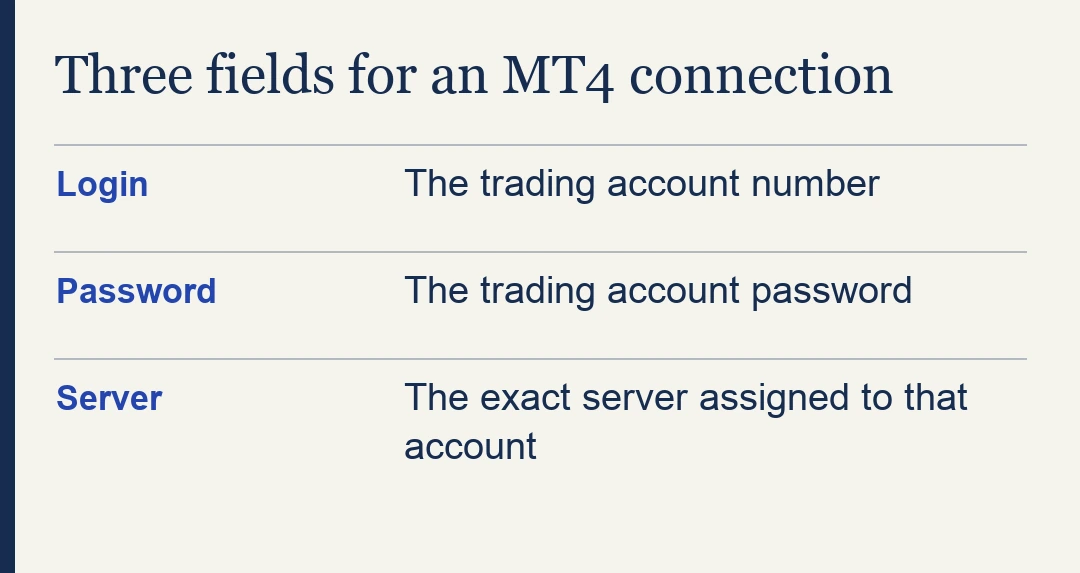
Three fields for an MT4 connection
UK Help Centre: accessing an MT4/MT5 trading account on desktopWhat can you try on Android or iPhone/iPad?
The available UK article documents desktop login but not the mobile taps. The mobile labels below come from the APAC international help service, so treat them as interface guidance to compare with your installed app, not as UK- or South Africa-specific contractual instructions. On Android in that guide, tap the three-dot icon at the top left, select Manage Account, choose Login to an Existing Account, search for and select the server, then enter the account number and password.
On iOS in that guide, tap Settings at the bottom right, select New Account, choose Login to an Existing Account, search for and select the server, then enter the account number and password. New Account is the app’s menu wording; choose the existing-account login option rather than creating another account. If the exact server cannot be found, recheck its spelling and the platform type in the credentials email. The international desktop guide supports scanning or manually entering a supplied server, but it does not establish a universal mobile add-server menu for every app version. If your authenticated UK or South African account area gives different device instructions, follow those service-specific instructions and retain a screenshot of the server and any error.
- Check that the installed platform is MT4 if the account record is for MT4.
- Choose the option to log in to an existing account, using the labels visible in your app version.
- Search for the exact server rather than selecting the closest-looking name.
- Enter the existing account number and password, then verify the displayed account and server after login.
Can the old and new devices use the same account?
The UK Help Centre says each MT4/MT5 session can be logged in to one account at a time. Switching accounts in that session logs out the current account and logs in the new one. It also says the same account and credentials can be used on different computers at the same time. Multiple platform instances are an option for managing different accounts simultaneously, but are not necessary merely to move one existing account to a replacement computer.
The APAC international article gives equivalent multi-account information for that service. For a South African account, check the actual platform behaviour and your own account records rather than treating international help as evidence of the local contract. After reconnecting, compare the displayed login or account number and server with your records before relying on balances, open positions or statements shown on the new device.
Is it a connection failure, an inactive quote or a closed market?
A chart showing Waiting for Update means the platform is not receiving market data; it does not by itself prove that the password or server is wrong. The APAC international troubleshooting guide lists distinct possibilities: no connection, an inactive symbol, server maintenance or a closed market, and an outdated platform. For a possible connection problem, check the platform’s connection status, confirm stable internet access and log in again using the exact account number, password and server. Record any Invalid Account, No Connection or authorisation message exactly.
For a quote problem on an otherwise connected account, that guide suggests right-clicking Market Watch, selecting Show All and opening the correct symbol’s chart. A symbol can be inactive even though login succeeded. If the market is closed or the server is under maintenance, waiting for trading to resume can be appropriate; if the platform is outdated, use the update route provided by your verified service rather than an unsolicited download. A frozen or blank price alone is not evidence that money has disappeared. Preserve the account statement, open-position record, screenshots and the time of the problem before changing settings or repeatedly logging in.
- Check whether the platform reports a connection or authorisation error.
- If connected, check that the chart uses the correct, active symbol.
- Check whether the relevant market is open and whether the platform needs an update through the verified service.
- Save the chart, symbol, connection status, exact error and time so connection and quote symptoms remain separate.
What should you do if the account still will not reconnect?
Stop short of repeatedly guessing credentials or selecting similarly named servers. Recheck the original credentials email, MT4 versus MT5 and the entity in the agreement. Capture the error, date, time, device and app version. For a UK account, use contact details verified through the genuine .co.uk site and FCA record. The UK site lists complaints@vantagemarkets.co.uk for complaints; include the reference, dates and resolution sought, and retain the response. Keep a technical login query distinct from a formal complaint. If a UK service dispute remains unresolved, raise it with the UK business first and then check the Financial Ombudsman Service’s current investment-complaint eligibility and deadlines; a clone or offshore firm cannot be assumed eligible.
For South Africa, the local contact table lists support-za@vantagemarkets.com for licence enquiries and support@vantagemarkets.com for complaints. State the client entity, account reference and issue, and use the formal process in the applicable agreement. The FAIS Ombud route concerns advice or intermediary service within its jurisdiction and requires approaching the provider first; do not automatically send an issuer, execution or product-supplier dispute there. Never send passwords, PINs or identity documents to this manual or in response to an unverified request. Use only the authenticated support or document-upload process of the entity verified through your agreement and official register details.
Sources
- APAC international help: managing multiple MT4/MT5 accounts and logging in on different devicesapac.vantagehelpcenter.com
- APAC international help: accessing an MT4/MT5 trading account on desktop and mobileapac.vantagehelpcenter.com
- APAC international help: adding a server that is missing from the MT4/MT5 login listapac.vantagehelpcenter.com
- APAC international help: troubleshooting an MT4/MT5 chart stuck on Waiting for Updateapac.vantagehelpcenter.com
- UK Help Centre: managing multiple MT4/MT5 accounts and logging in on different deviceshelpcenter.vantagemarkets.co.uk
- UK Help Centre: accessing an MT4/MT5 trading account on desktophelpcenter.vantagemarkets.co.uk
- UK Help Centre: adding a server that is missing from the MT4/MT5 login listhelpcenter.vantagemarkets.co.uk
- FCA warning concerning vantagemarkets.com and its distinction from the genuine UK firmwww.fca.org.uk
- FCA clone warning identifying the genuine UK Vantage firm, domain and reference numberwww.fca.org.uk
- UK Vantage legal documents and regulations applicable to UK accountswww.vantagemarkets.co.uk
- UK Vantage contact details and complaints addresswww.vantagemarkets.co.uk
- Financial Ombudsman Service guidance on investment complaintswww.financial-ombudsman.org.uk
- South African Vantage regulatory information: intermediary, product supplier and account counterpartywww.vantagemarkets.com
- FSCA financial services provider searchwww.fsca.co.za
- South African Vantage contact details for licence enquiries and complaintswww.vantagemarkets.com
- FAIS Ombud complaint submission portal and processfais.powerappsportals.com